 Starvard.Starvard.
Starvard University · School of Technology
Most people use about ten percent of what their Mac can do, and spend the rest of their day hunting for windows, files, and passwords. This course teaches the other ninety percent: the gestures, corners, syncing, and small power tools that turn a Mac into a machine that quietly keeps up with you. Every practice here is field tested in a working studio that ships real projects from Macs every day.

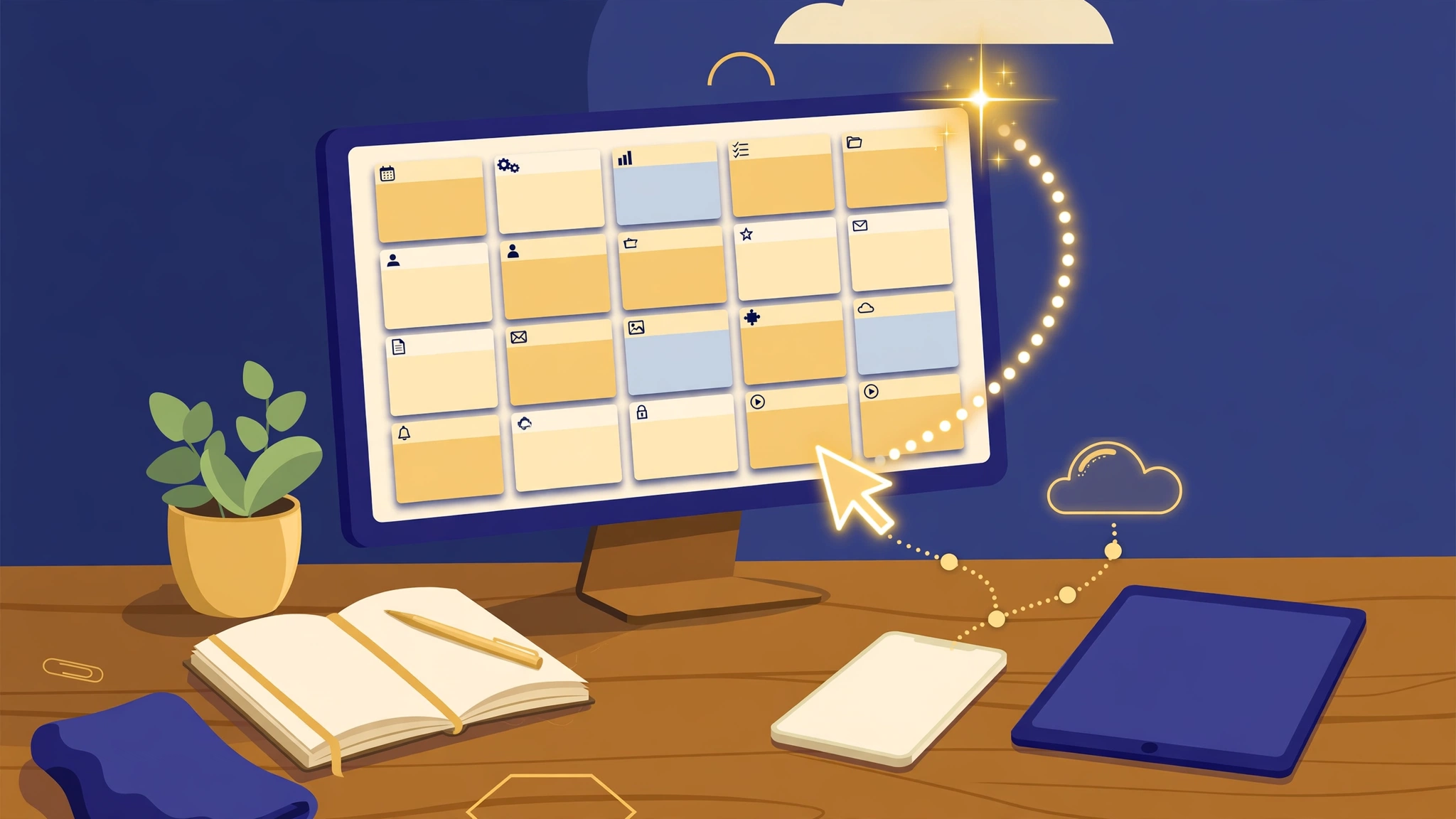
The whole course in brief
Ten lessons. Set up each one as you read it; every setup takes minutes and pays you back daily.
Lessons
Here is the mindset shift behind every lesson in this course. A Mac is not a typewriter with a screen. It is a system of surfaces (windows, desktops, the Dock, the Finder) connected to a sync layer (iCloud) and a summoning layer (Spotlight, hot corners, keyboard shortcuts). Beginners fight the surfaces. Pros set the system up once, and after that the right thing is always one gesture away.
Three commitments make the whole course work:
You do not need the newest Mac for any of this. Hot corners, Mission Control, iCloud, and Finder tricks have been in macOS for years, and a five year old machine with a good system beats a new one used at ten percent.
Hot corners are the single highest value setting on a Mac, and almost nobody turns them on. The idea: each corner of your screen becomes a button. Fling your mouse into a corner, no aiming, no clicking, and something instant happens. Mouse flings are the fastest gesture you own, because a corner cannot be overshot.
Set them at System Settings, then Desktop and Dock, then the Hot Corners button at the bottom. Here is the exact configuration this course recommends, the one used all day in our studio:
Two refinements. First, if a corner fires when you did not mean it, macOS lets you require a modifier key; most people find plain corners fine after a day of habit. Second, the same trick exists on a trackpad through gestures (spread with thumb and three fingers for the desktop, swipe up with three or four fingers for Mission Control), and learning one of each, mouse and trackpad, covers desk and couch.
Expect one day of accidentally triggering corners and then a lifetime of wondering how anyone works without them. In the studio these two flings, all windows and desktop, get used more than the Dock.
Window chaos is the tax every knowledge worker pays hourly. Three tools abolish it.
Snapping first. You should never resize a window by fiddling with its edges. Drag the window by its title bar to a screen edge and let go: the top edge makes it fill the screen, the left and right edges give it exactly half. The beloved little utility Cinch (from Irradiated Software) pioneered this on the Mac and still does it beautifully, and modern macOS now offers its own tiling when you drag a window to an edge or hover the green button. Whichever engine you use, the habit is the same: writing on the left half, reference on the right half, full screen for the main stage.
Mission Control (your top left hot corner) is the overview: every window, every desktop, one spread. Learn to glance there instead of shuffling windows like cards.
Spaces are multiple desktops, and they are the real secret. Keep one Space per project: mail and messages on one, the current project on another, browsing on a third. Swipe between them with three or four fingers, or from Mission Control. A project Space holds its windows exactly where you left them, so switching projects becomes one swipe instead of a ten window excavation. Right click an app in the Dock and assign it to a Space under Options if you want it to always live in its room.
Stage Manager, Apple's grouped window shelf, suits some people and drives others mad. Try it for a week if window sprawl is your specific pain; the system in this lesson, snapping plus Spaces, is the one that survives contact with real deadlines.
Your mouse flings handle windows; your keyboard should handle everything else. The whole layer is five habits.
Notice what is not here: a hundred shortcuts. Five habits, practiced until they are reflexes, beat a poster of two hundred you never learned.
Finder is where files live, and most people use it like a junk drawer. Four upgrades turn it into a filing system that files itself.
One aesthetic rule with practical teeth: keep the desktop nearly empty. The desktop is a loading dock, not a warehouse. Lesson 7 turns the one folder that deserves desktop space into the hardest working folder on the machine.
Here is where the Mac stops being a machine and becomes a place. With iCloud set up properly, your files, desktop, photos, notes, and browser tabs exist on every device you own at once: the iMac at the desk, the laptop on the couch, the iPhone in your pocket, the iPad in your bag. Start something anywhere, finish it anywhere, and never email yourself a file again.
The settings that matter, in iCloud settings on the Mac:
The discipline that makes syncing safe instead of scary: syncing is not backup. It faithfully copies deletions too. Lesson 10 pairs iCloud with Time Machine so the system both follows you everywhere and remembers everything. Hold those two ideas together and you can trust the cloud with your working life.
Now the trick this course is famous in our studio for passing around. iCloud Drive lives deep in a hidden library folder, which means reaching it takes clicks. But your desktop is one hot corner fling away. So: put a doorway to iCloud Drive on the desktop itself, with one line in Terminal.
Open Terminal (Spotlight, type Terminal, Enter) and paste this line exactly, then press Return:
What just happened, in plain words: ln -s makes a shortcut (a symbolic link). The long path is where iCloud Drive actually lives on a Mac. The end of the line names the shortcut and puts it on your desktop. Nothing was moved and nothing can break; the shortcut is a doorway, not a copy. Delete the shortcut any time and iCloud does not notice.
Why it is a superpower, especially with Lesson 2's setup: you are dragging a file, you fling your mouse to the top right corner, every window sweeps away, and there on your desktop sits a folder called iCloud Drive. Drop the file in. It is now on your phone, your iPad, and your other Mac. Reverse trip works too: fling, open the folder, grab the thing you saved from the couch. In the studio this desktop doorway quietly replaced USB sticks, email attachments to self, and a small fortune in "where did I save that" minutes.
Two honest notes. First, if your Desktop folder itself syncs (Lesson 6), the doorway syncs along, so every machine gets it too; that is a feature. Second, if the folder ever shows a cloud icon with a download arrow, the file lives in iCloud and downloads on first open; right click and choose Download Now for anything you need offline on a plane.
Every minute spent typing, resetting, or reusing a password is a small failure of setup. A password manager fixes it permanently: it remembers every login, generates strong unique passwords you could never memorize, and fills them in on every device.
Your two sane options are Apple's own Passwords app (built in, synced by iCloud, free, and genuinely good now, including passkeys and shared family groups) and 1Password, the long standing independent choice with excellent sharing for teams and a polished app on everything. Pick one and commit; using both is how logins get lost.
The working rules:
Notice the compounding with Lesson 6: on a new Mac, sign into iCloud, open your password manager, and every account you own is simply there. Setting up a computer stops being a weekend project and becomes a coffee break.
Every Mac ships with Apple's work trio, and the star for getting work done is Keynote, the presentation app. It is not merely "good for free." Keynote's themes, typography, and alignment guides make an average deck look designed, and its animations are restrained in a way that flatters beginners instead of embarrassing them. If you present anything (pitches, lessons, reports, family histories), Keynote is the fastest path to looking like you hired a designer.
Working habits that make Keynote sing:
The supporting cast earns its keep too: Pages for handsome documents and letters without Word's archaeology, Numbers for small, beautiful tables and trackers (it is a canvas of little spreadsheets, lovely for personal budgets and lists), and Freeform as an infinite whiteboard when a project needs to sprawl visually. None of them cost a cent, all of them sync through iCloud, and all of them open fine on your phone when a thought strikes away from the desk.
Everything so far assembles into one daily system. Here is the finished picture, then the two safety rails that protect it.
A day in the system. You sit down and fling top left: Mission Control shows yesterday exactly as you left it, one Space per project. You swipe to today's project, windows already arranged, halves snapped. Files arrive and leave through the desktop iCloud doorway (top right, drop, done). Spotlight opens everything, the password manager signs you in everywhere, dictation drafts the long replies. A note on your phone at lunch is on the Mac by the time you sit back down. Nothing was hunted, retyped, or emailed to yourself. That is what "the Mac gets a lot of work done" actually feels like: not faster typing, but the disappearance of friction.
Safety rail one: Time Machine. Plug in any external drive, say yes when the Mac offers it for Time Machine, and never think about backup again. It keeps hourly versions quietly, which means the sync layer (Lesson 6) can be fearless: anything deleted or mangled exists in yesterday's copy. Sync plus backup is the complete sentence; either alone is half of one.
Safety rail two: small automations. The Shortcuts app, already on your Mac, turns repeated sequences into one click or one phrase: resize a batch of photos, start a work session (open the right apps, the right Space, a focus mode), turn a screenshot into a shared link. Start with one shortcut for the thing you do every morning. Automation is not a programming hobby here; it is the same philosophy as hot corners, one setup that pays you back daily.
Keep the system alive with a ten minute Friday ritual: clear the desktop loading dock into real folders, empty Downloads, glance at Mission Control and close what is truly finished. Systems beat willpower, but systems like a light weekly dusting.
That is the whole course. Corners, edges, Spaces, Spotlight, Finder, one cloud, one doorway, one vault, one beautiful deck, one quiet backup. Set it up once, and your Mac stops being a place where work piles up and becomes the reason the work gets done.
Starvard is a free university being built right now by kind, hard-working people. Do a first small task with us, like checking a course, adding a book to the library, or testing pages on your phone, and get $10 for it.
Get $10: help us build →